Getting started
Overview
Your ISP gets its own dashboard at yourname.enzimpya.com, with its own database. The dashboard home shows a setup checklist with four steps: network name & logo, first router, first package and payment gateway. When all four are done, you're ready to bill.
The home page also shows how the business is doing today: today's earnings against the last 7 days, this week's, this month's and lifetime earnings, today's top packages, a live slideshow of each router, and the most recent payments.
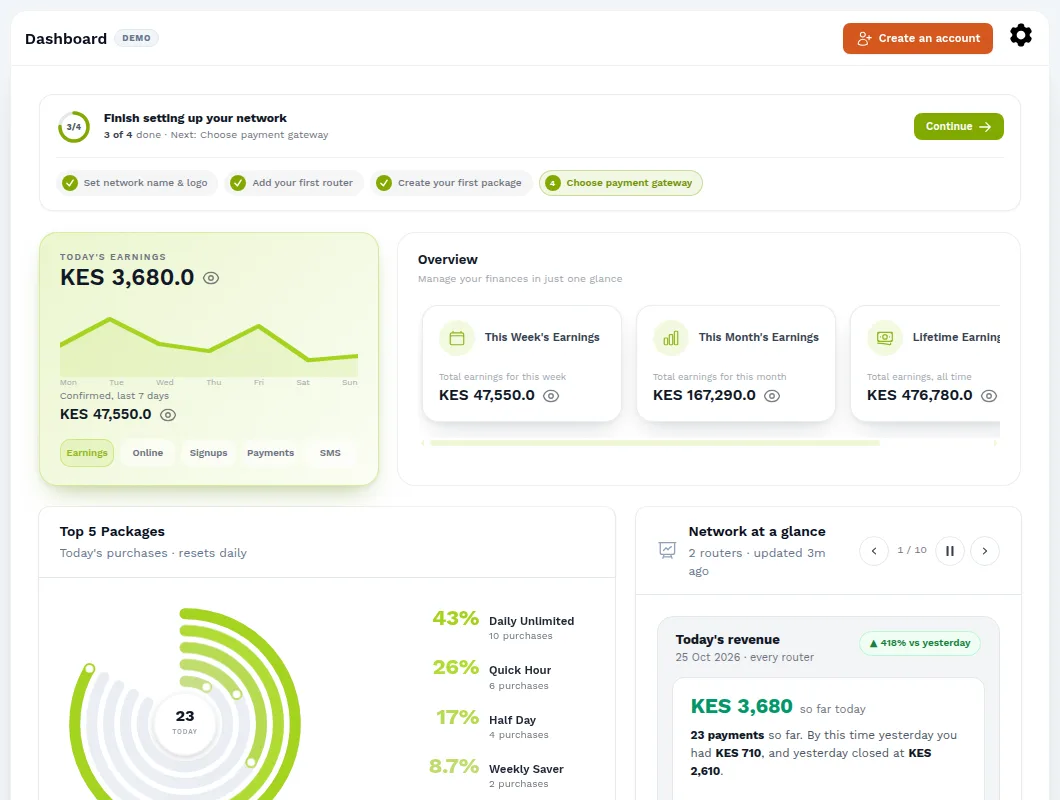
Every screenshot in this guide comes from the demo dashboard. It's a full working copy with sample routers, OLTs and customers, and you can open it right now to follow along.
1. Create your account
Go to enzimpya.com/register and enter your details and your ISP's name. Your dashboard is created straight away. You can sign in from enzimpya.com/login or directly at your own address.
Every new account starts with a 14-day free trial, and you don't need a card.
2. Set your network name & logo
Open Settings → Profile and set your Network name and logo. Customers see these on the captive portal, in SMS messages and in the mobile app, and your staff see them on the sign-in page. Use the name your customers know you by.
3. Connect your MikroTik router
Before you start, make sure that:
- The router runs RouterOS v6 or v7 and has a working internet connection.
- You can open it in Winbox as an admin user.
- Its clock is correct. Turn on NTP under System → SNTP Client (v6) or System → NTP Client (v7).
Then, in your dashboard, go to Mikrotiks and click New:
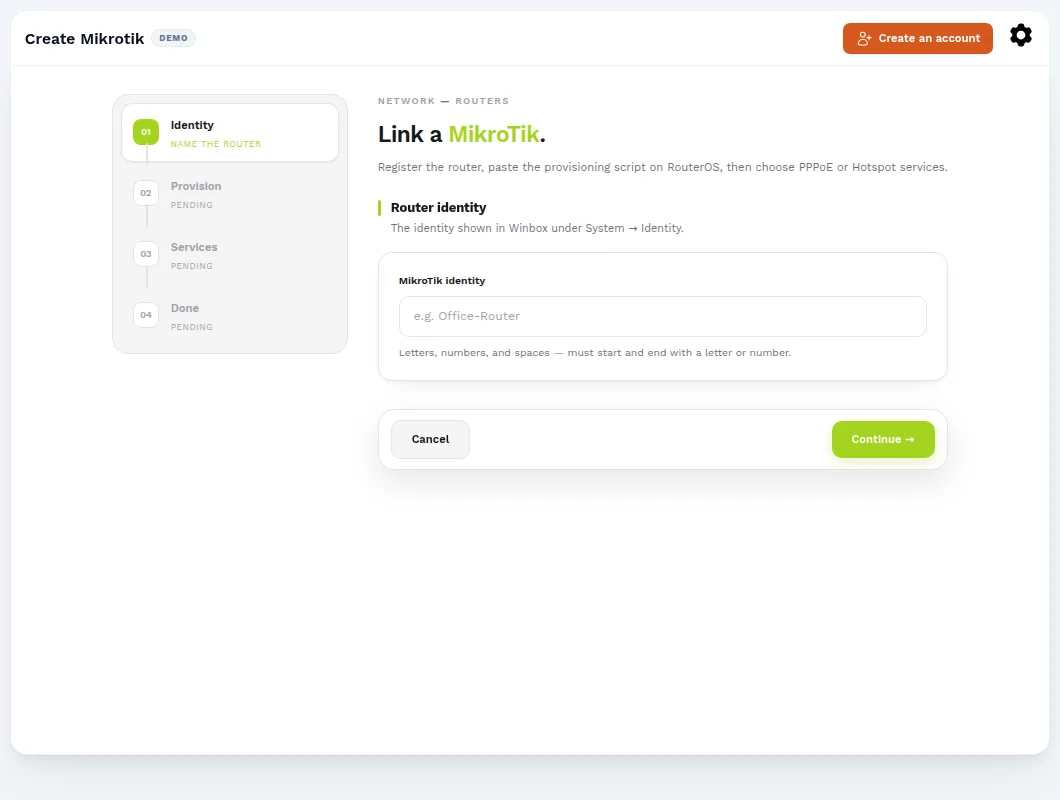
- Router identity. Enter the identity shown in Winbox under System → Identity. It can contain letters, numbers and spaces, and must start and end with a letter or number.
- Provisioning script. The dashboard shows a one-line script. In Winbox, open New Terminal, paste the script and press Enter. The router downloads its secure VPN connection to EnziMPya, so you don't need a public IP or any port forwarding.
- Wait for "Router online". The page checks the router automatically. It usually turns green within a minute.
- Choose services. Select PPPoE (always-on broadband subscribers), Hotspot (captive portal & vouchers), or both. For hotspots you can also turn on Anti-Sharing Protection, which stops one paid connection being shared with other devices.
- Bridge ports. Tick the ports your subscribers connect through. Leave your uplink / WAN port unticked.
- Apply configuration. The router is configured in the background and you can watch the log on the page. When it finishes, click View router.
"device mode not allowed"? Newer RouterOS v7 versions block some features until you allow them. Run /system/device-mode update mode=advanced in the terminal. RouterOS then asks you to confirm by pressing the reset button or power-cycling the router within a few minutes. After that, paste the provisioning script again.
4. Create your packages
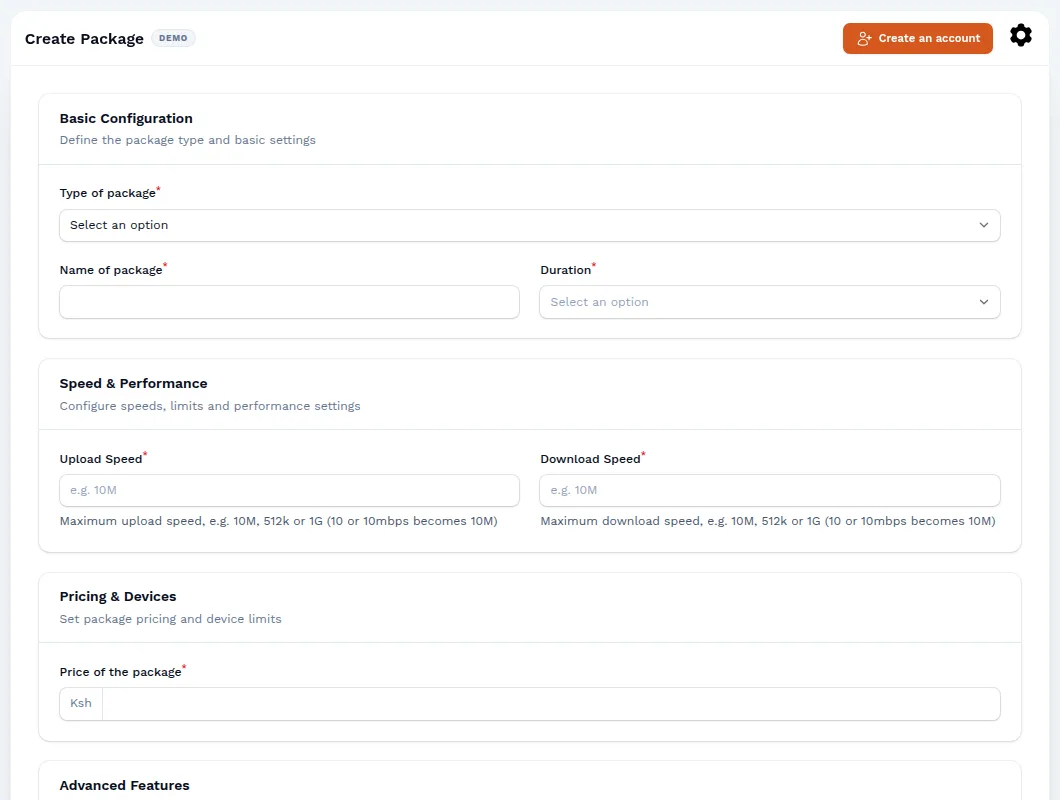
Go to Packages → New. Choose the type (Hotspot or PPPoE), then give the package a name, a duration and a price.
- Upload / Download Speed: write speeds like
10M,512kor1G. A plain number is read as megabits, so10becomes10M. - Simultaneous Devices: how many devices can use one hotspot purchase at the same time.
- Hide from clients / Hide from mobile app: keep a package off the captive portal or the app, for example a special price for one customer.
- FUP and Burst: see PPPoE, FUP & burst.
5. Connect M-Pesa
Open Settings → Payments and choose how your customers pay. EnziMPya works with Safaricom's Daraja API for M-Pesa Paybill and Till. When a customer pays, the payment is matched to their account, their internet is switched on and they get a confirmation SMS, usually within seconds.
To use your own Paybill or Till you need its Daraja API credentials from the Safaricom developer portal. If you don't have them yet, contact us and we'll help you choose the right option.
6. Add your subscribers
- Hotspot customers sign themselves up. They connect to your Wi-Fi, choose a package on the captive portal and pay with M-Pesa. You can also print vouchers to sell for cash.
- PPPoE customers: go to Clients → New, choose the PPPoE package and router, and set a username and password for their CPE.
- Static IP customers get a fixed address from a pool. See Static IP.
When a subscription runs out, the account is suspended automatically and switched back on as soon as the customer pays. Reminder and payment-confirmation SMS are set up under Settings → Expiry & reminders and Settings → Payment confirmations.
Moving from another billing system? We can import your existing subscribers and packages for free. Get in touch.
7. Customise your captive portal
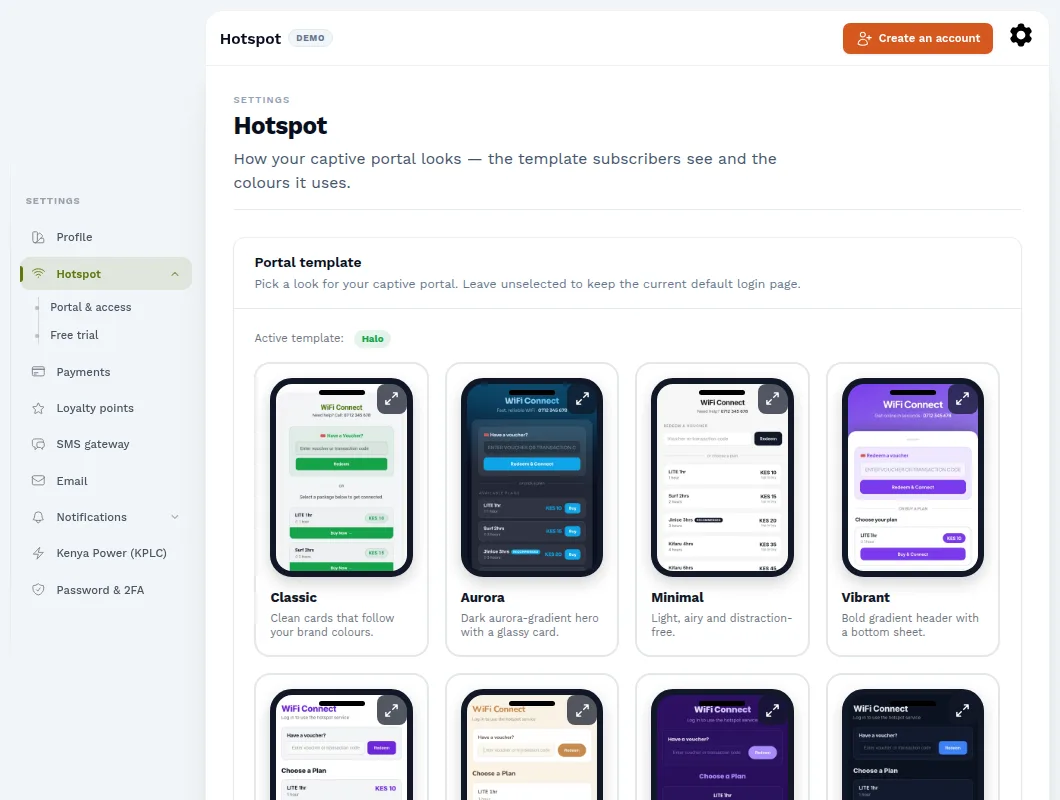
Under Settings → Hotspot, pick a design from the template gallery. Each design is shown on a phone mock-up, and you can preview any of them before switching. Every template supports M-Pesa payments, vouchers and reconnecting with an M-Pesa code. Settings → Portal & access holds the rest of the portal's options.
8. The subscriber mobile app
Tell your customers to install the EnziMPya app from Google Play. They sign in with the phone number on their account and an SMS code, and the app connects them to your ISP automatically. From the app they can:
- see their package, expiry and usage, and pay with M-Pesa;
- change their home Wi-Fi name and password, if their ONU is managed over TR-069;
- send you a support ticket, which appears under Tickets.
To reach app users directly, send them a message from Push Notifications.
Network
Routers
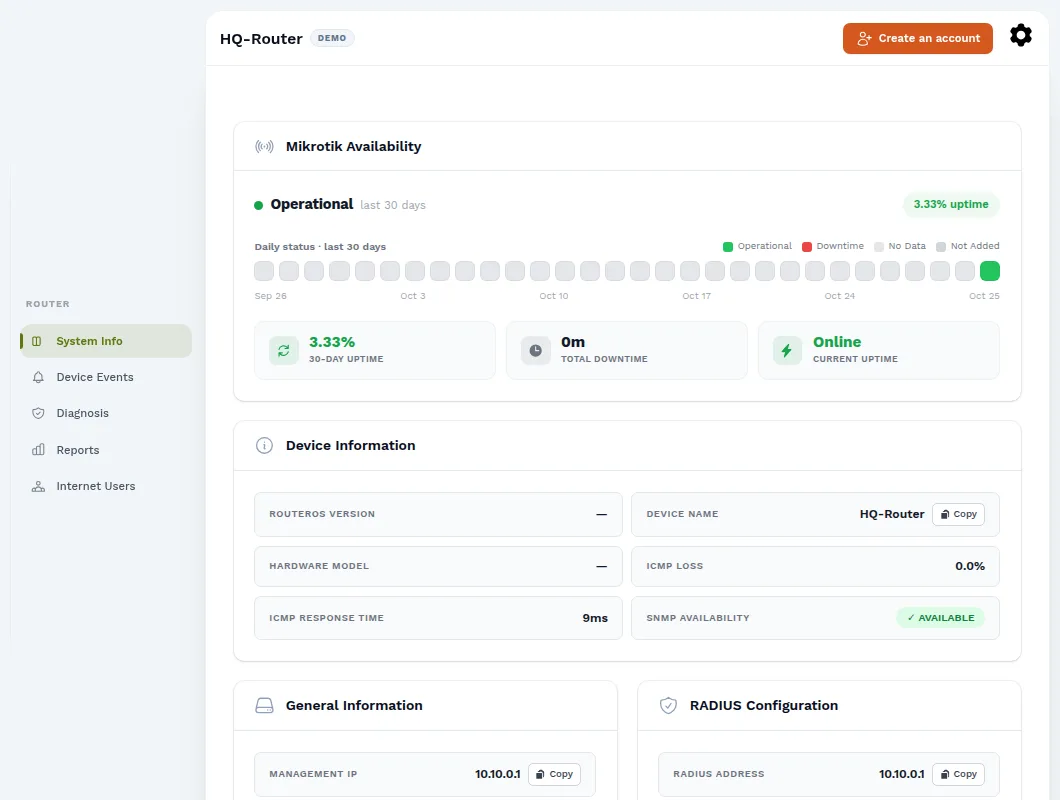
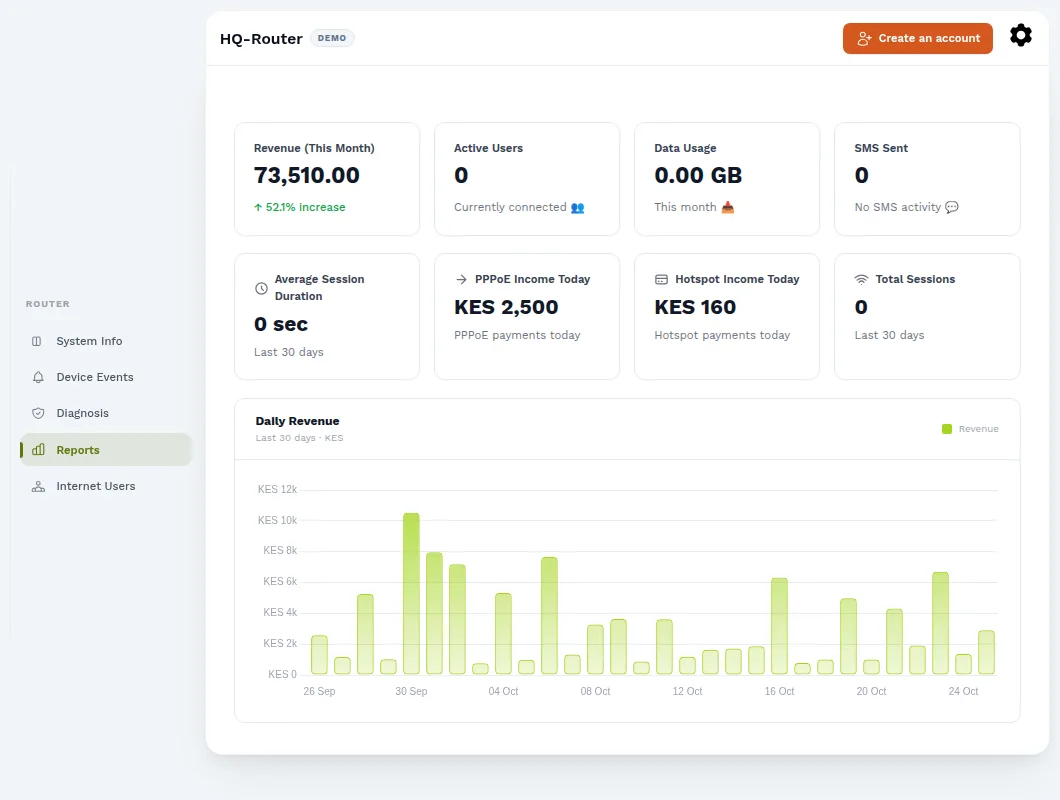
Mikrotiks lists every router with its online status, its RADIUS (VPN) address, and whether it answers ping. The WinBox column gives each router an address you can copy and use to open it in WinBox remotely, wherever you are. Click a router to open its page, which has these tabs:
| Tab | What it shows |
|---|---|
| System Information | Availability over the last 30 days, uptime, RouterOS version, CPU and memory, the RADIUS configuration, and the provisioning script if you ever need to paste it again. |
| Live Traffic | Live receive and send rates on every physical port, bridge and VLAN. It updates about once a second while the tab is open. |
| Device Events | A history of status changes and alerts, such as the router going offline and coming back. |
| Diagnosis | Compares the router's live configuration with the EnziMPya baseline (reachability and API access, RADIUS, NAT and firewall, bridge ports, PPPoE and hotspot servers, address pools, DHCP, the walled garden and anti-sharing) and lists every check as passed, warning or failed. Many issues have a Fix automatically button. |
| Reports | This router's revenue for the month, active users, data usage, SMS sent and daily revenue for the last 30 days. |
| Internet Users | Who is connected through this router right now. |
If you want an SMS or email when a router goes offline, turn on MikroTik Status Notifications under Operator alerts.
Hotspot & vouchers
A hotspot customer connects to your Wi-Fi and the captive portal opens. They choose a package, pay with M-Pesa on the same page, and are online within seconds. Behind the scenes, EnziMPya creates their RADIUS login and the router applies the package speed and expiry.
- Reconnect. A customer who has already paid can get back online from the portal by entering their M-Pesa code or voucher. This works even if their phone has changed its Wi-Fi MAC address.
- Simultaneous devices. The package decides how many devices can share one purchase.
- Anti-sharing. When you turn it on during router setup, it stops one paid device from passing its connection on to others.
Vouchers
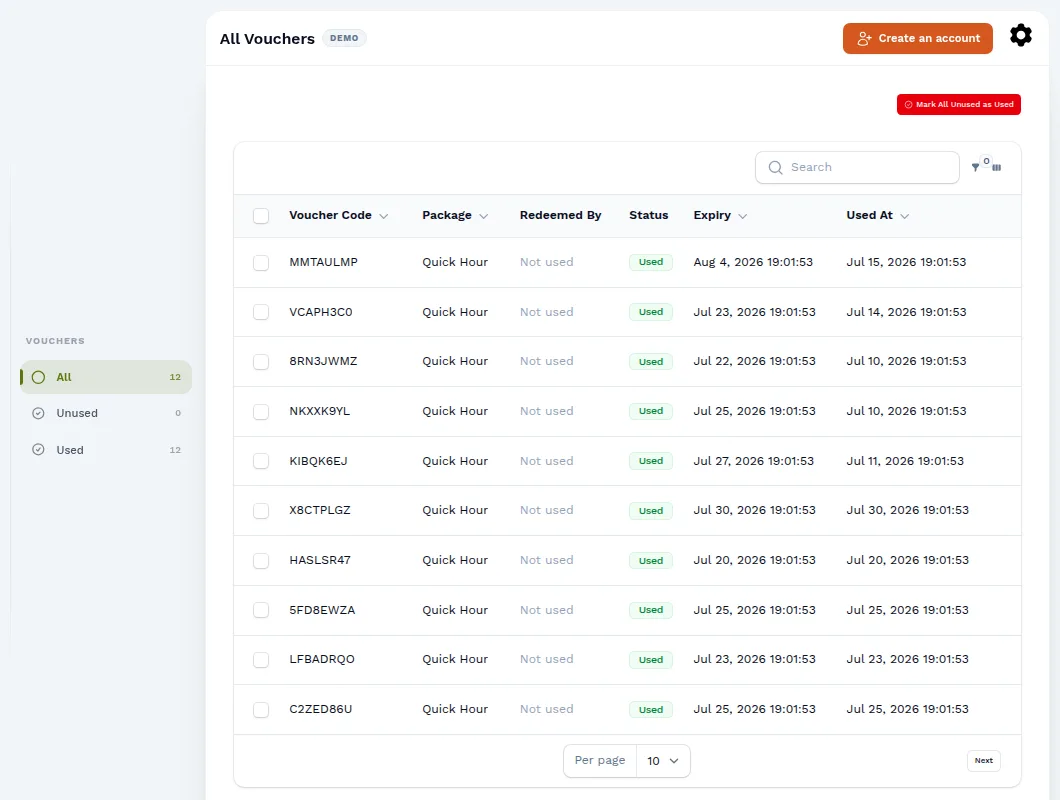
On Vouchers, generate codes in bulk for cash sales or resellers. Choose the package, how many codes to make, a two-letter prefix and an optional expiry date. The list shows which codes are unused, used or expired, who redeemed each one and when.
IP Bindings
Some devices can't use a captive portal, such as smart TVs, CCTV cameras, POS machines or an office printer. An IP Binding lets a device skip the hotspot login completely:
- Choose the router, then pick the device from the list of connected devices to fill in its IP and MAC. You can also type them in.
- Optionally choose a package, which adds a speed limit (a simple queue on the router).
- Optionally link it to a client. The binding is then switched off when that client's package expires and switched back on when they renew.
- Optionally set an expiry date. The binding switches itself off at that time.
PPPoE, FUP & burst
PPPoE customers stay connected all the time with their own username and password. EnziMPya authenticates them through RADIUS, applies their package speed, and suspends them automatically when they don't pay. Paying, by M-Pesa or through the app, switches them straight back on.
- FUP (Fair Usage Policy). On a PPPoE package, set a data limit for each billing period and what happens after it: slow the customer down to a lower FUP speed, or cut them off. To restore a customer early, open their profile and click Remove FUP / Restore Normal Speed. The FUP tab on Clients lists everyone currently affected.
- Burst. Lets customers go above their package speed for a few seconds, up to a burst limit, so pages and downloads start quickly. Their normal speed then takes over.
PPP Pools (reseller caps)
If a few heavy PPPoE users, for example resellers sharing your line, are slowing everyone else down, group them in a PPP Pool under IP Pools → PPP Pools. The whole group then shares one bandwidth cap, while ordinary home users are left alone.
- Download cap: the total the group can use together, for example
200M. - Guaranteed per member: the minimum each member always gets. Members × this must stay under the cap.
- Each member keeps their own package speed as their personal maximum.
- The pool gets its own address range, so you can see reseller traffic separately.
Members must be on the pool's router. A member picks up the cap the next time they reconnect, or straight away if you tick Disconnect now.
Static IP
For businesses that need a fixed address, create a Static Pool under IP Pools. Choose the router, the subnet in CIDR form (e.g. 192.168.10.0/24), the gateway, and the interface or VLAN ID the customers connect through. If you use a VLAN, the customer's CPE must tag its traffic with that VLAN.
Then assign an IP from the pool to a client, with a package for the speed limit and an expiry date. The router enforces the speed with a queue, and the client's online status and expiry show like any other customer's.
Fibre
OLT Management
OLT Management shows every ONU on your fibre network in one table: which are online, which have weak signal, which keep dropping, and which customer each one belongs to. You don't need to log in to each OLT.
How it works
The OLT stays on your private network behind your MikroTik. EnziMPya reaches it through the router's existing VPN tunnel: the router forwards the dashboard's requests to the OLT's web page, and nothing is opened to the internet. The forwarding rules only accept the dashboard's VPN address.
Every 15 minutes the dashboard reads the OLT's ONU list (status, optical signal, distance and drop history) and keeps the readings, so you can see how each ONU has behaved over time. It also finds out which customer is behind each ONU. It does this by matching the devices seen behind the ONU to your customers' RADIUS sessions, then labels the ONU with that customer's name.
Supported OLTs: HiOSO EPON OLTs (for example the HA7304) are supported today. Using a different brand? Talk to us. We're adding more.
Adding an OLT: the Setup wizard
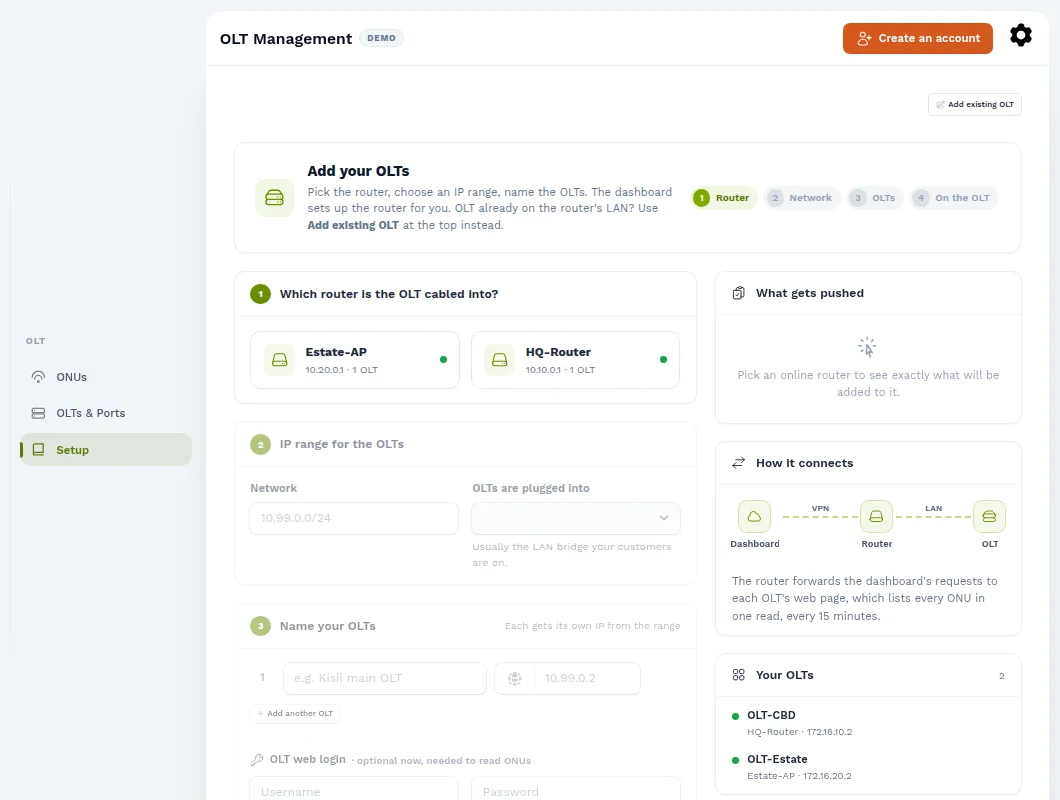
Open OLT Management → Setup (or click Set up OLTs):
- Pick the router the OLT is cabled into. The dashboard checks over the VPN that the router is online.
- Choose an IP range for your OLTs. The dashboard checks it against every address and pool on the router and suggests a free one. Choose the bridge the OLTs plug into, which is usually the LAN bridge your customers are on.
- Name your OLTs. Each one gets its own address from the range automatically.
- OLT web login. Enter the login used on the OLT's own web page. It's best to create a separate account for the dashboard on the OLT under System → Administrator.
- Push. The dashboard adds the range to the router, reserves it as an IP pool and adds the forwarding rules. The What gets pushed panel shows exactly what will be added before you confirm.
Then, on site, give the OLT the IP, mask and gateway the wizard shows (System → Network on a HiOSO, then System → Save Configuration), and cable its uplink into the router. Press Diagnose. When every line is green, the ONUs appear within a minute.
If the OLT already has an address on the router's LAN, use Add existing OLT instead. Enter the router, the OLT's management IP and its web login. You can also add an SNMP read community as a backup way to read it.
The ONU table
The ONUs tab lists every ONU on the selected OLT, filtered by PON port. Summary cards at the top count the ONUs that need attention:
| Card | Meaning |
|---|---|
| Online | Registered on the OLT and passing traffic. |
| Offline | Known to the OLT but not registered. The table shows why, for example power lost. |
| Weak signal | Online, but receiving below −27 dBm. These are usually a dirty connector, a tight bend or a long drop cable, and are worth fixing before they fail. |
| Stuck registering | Started registering but never finished. |
| Frequent drops | Dropped 3 or more times since the OLT last started. |
| Last poll | When the OLTs were last read, and how many answered. |
Each row shows the PON port and ONU number, the customer's name, the ONU's MAC and the customer's router, status and uptime, registration, receive (Rx) and transmit (Tx) power, distance from the OLT, and the drop count. More columns are available: temperature, voltage, bias, last drop reason, LAN ports and first or last seen.
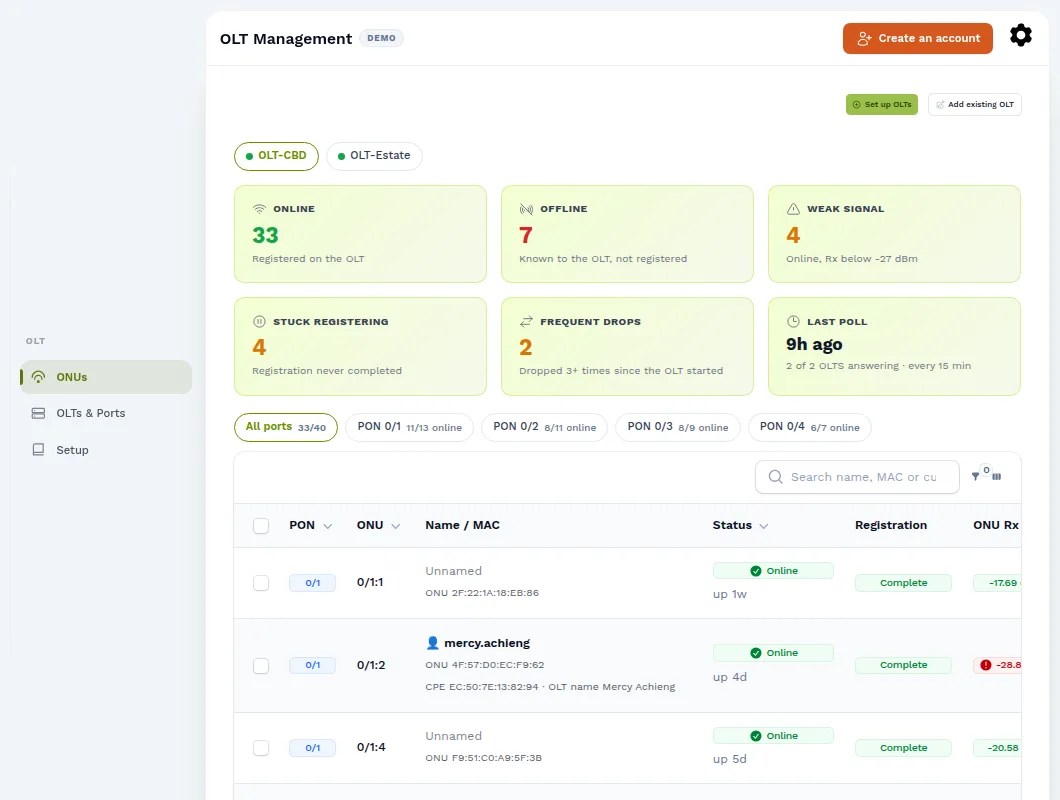
Actions on the OLT, which you confirm before they run and which are recorded in the system log: Reboot, Activate, Deactivate, Factory reset, Clear loop flag, Rename on OLT and Delete from OLT. You can reboot many ONUs at once. You can also bulk-delete ONUs, but only offline ones.
OLTs & Ports
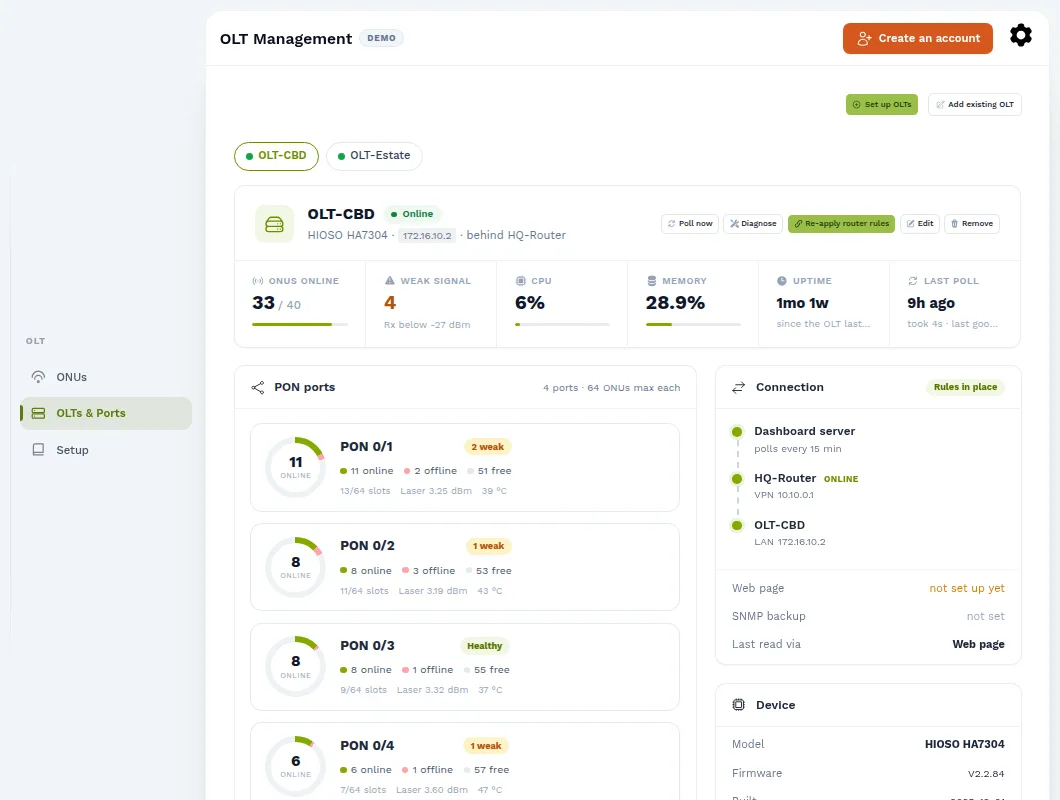
This tab shows the health of each OLT: ONUs online, weak signals, CPU, memory, uptime and when it was last read. Each PON port shows its online, offline and free slots, laser power and temperature. The Connection panel follows the whole path, dashboard → router → OLT, so you can see exactly where a break is.
- Poll now reads the OLT immediately, without waiting for the next 15-minute read.
- Diagnose tests each link in the chain and says what to fix.
- Re-apply router rules puts back the forwarding rules if someone removed them from the router.
- Open web UI opens the OLT's own web page through the dashboard, from anywhere.
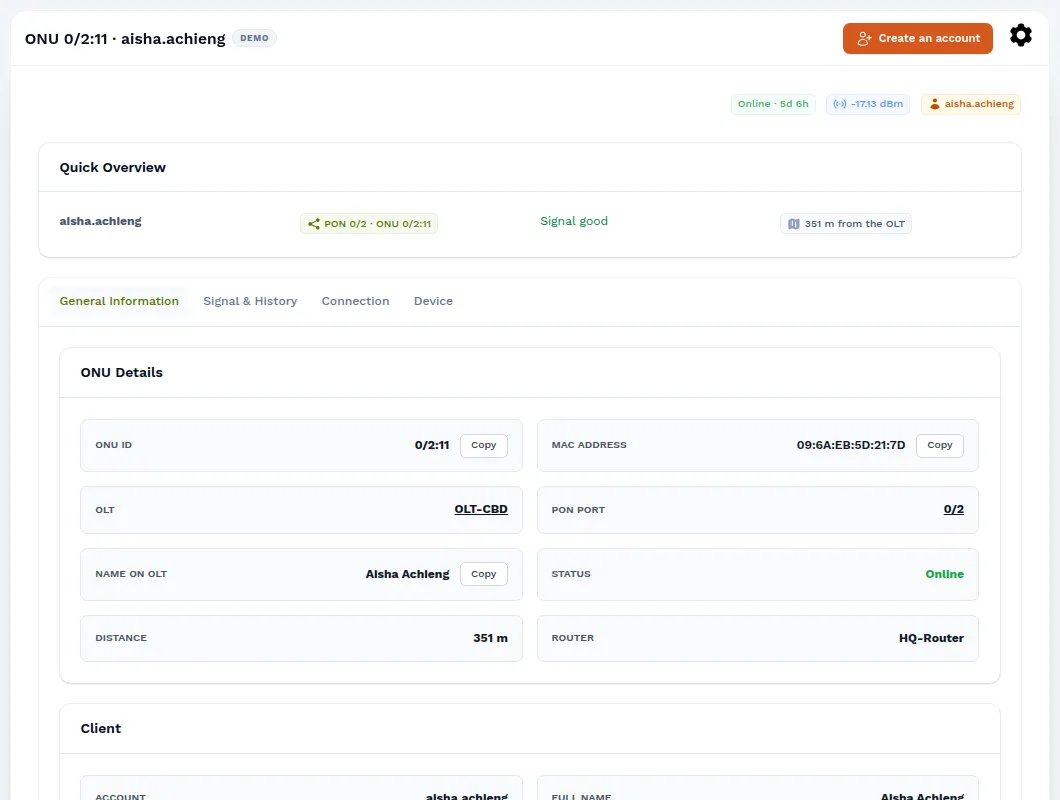
An ONU's page
Click Open on any row to see that ONU's details, its customer, its signal history over time, its connection and the device. When a customer calls, this page tells you in seconds whether the problem is the fibre, the power or something else.
CPEs over TR-069
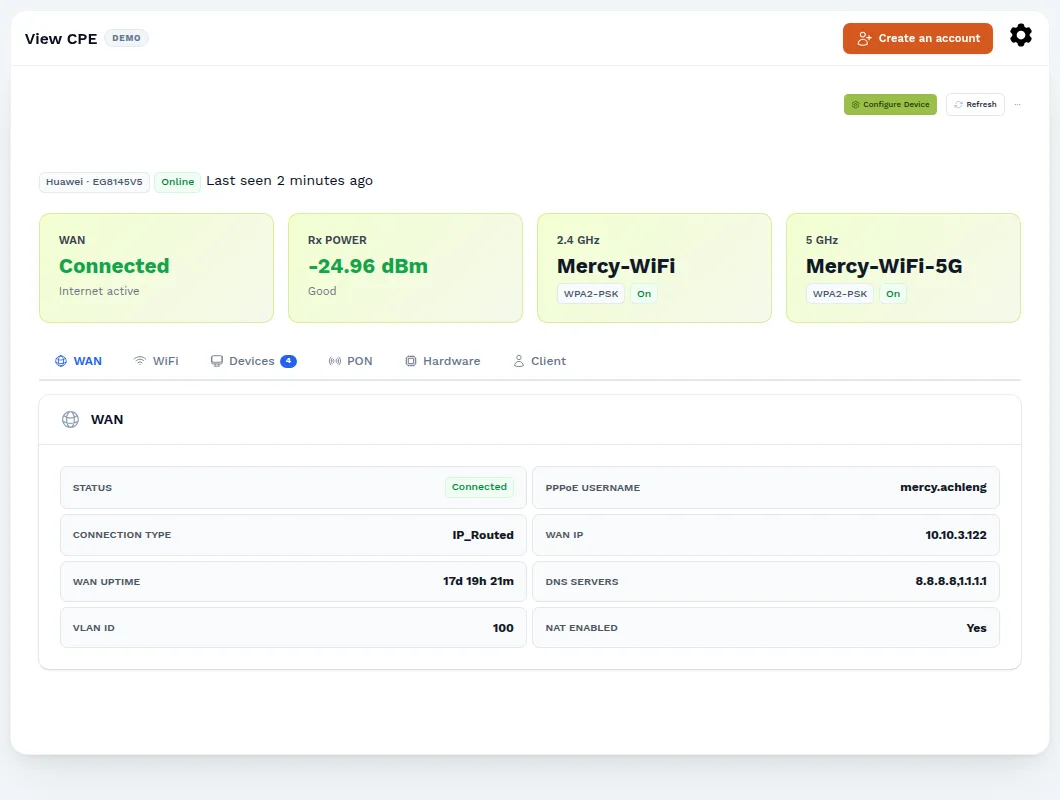
OLT Management reads ONUs from the OLT. CPEs manage the customer's device itself over TR-069 (CWMP), the standard remote-management protocol most ONUs and home routers support. EnziMPya runs the ACS (the management server). Each device calls in to it every 5 minutes, and that lets you:
- see the WAN status, PPPoE username, WAN IP, optical Rx power, Wi-Fi networks, connected devices and hardware details;
- change the 2.4 GHz and 5 GHz Wi-Fi names and passwords, turn on a guest network, or set the PPPoE login, all from Configure Device;
- Reboot or Factory reset the device remotely;
- open the device's own web page through the dashboard, without going on site;
- let the customer change their own Wi-Fi from the mobile app.
Connect a device
This is a one-time setup for each device. The full steps, with your own ACS URL, are under CPEs → Setup Guide:
- Plug a laptop into the ONU's LAN port and open its admin page, usually
192.168.100.1or192.168.1.1. - Find the TR-069 / CWMP page. It's usually under WAN → TR-069, Network → Management → TR-069 or Advanced → Remote Management.
- Enable TR-069 and paste the ACS URL from the Setup Guide. Leave the ACS username and password blank, and turn Periodic Inform on with an interval of
300seconds. - Save. Within a minute or two the device appears under CPEs as discovered. Open it and link it to the client.
To save time, use Register ONU to pre-register a serial number. The device then links itself to the right client the first time it calls in. If your OLT or router already hands out the ACS URL (DHCP option 43 / OMCI), devices register on their own.
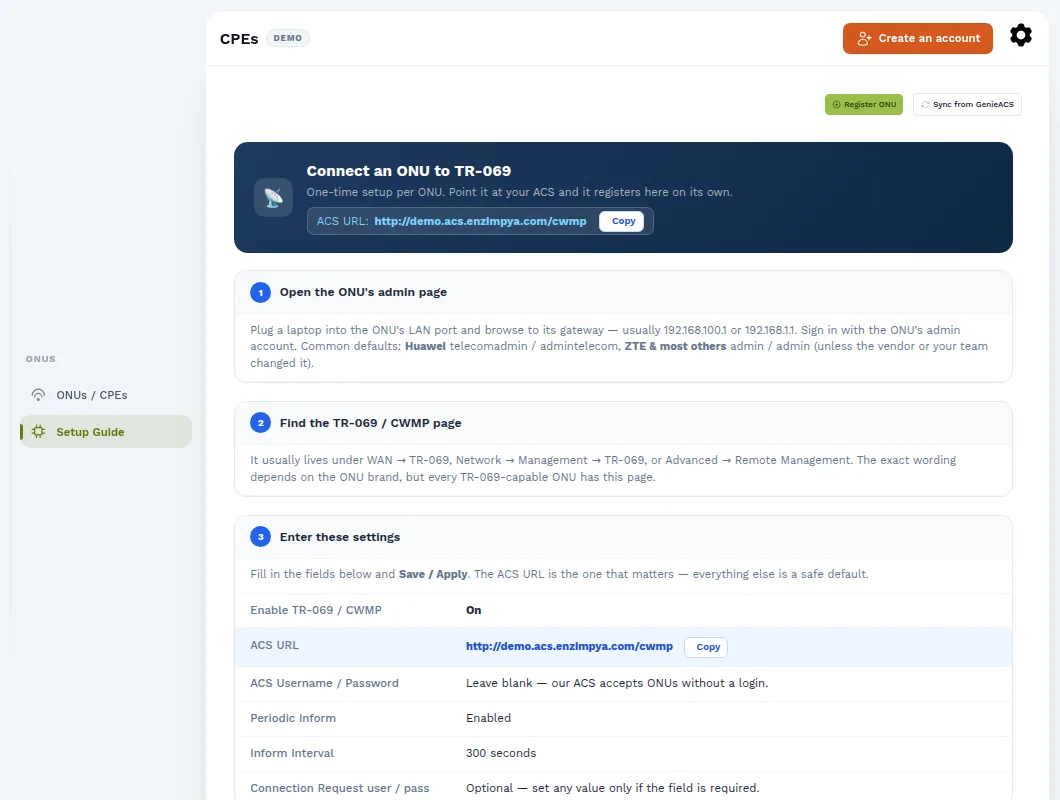
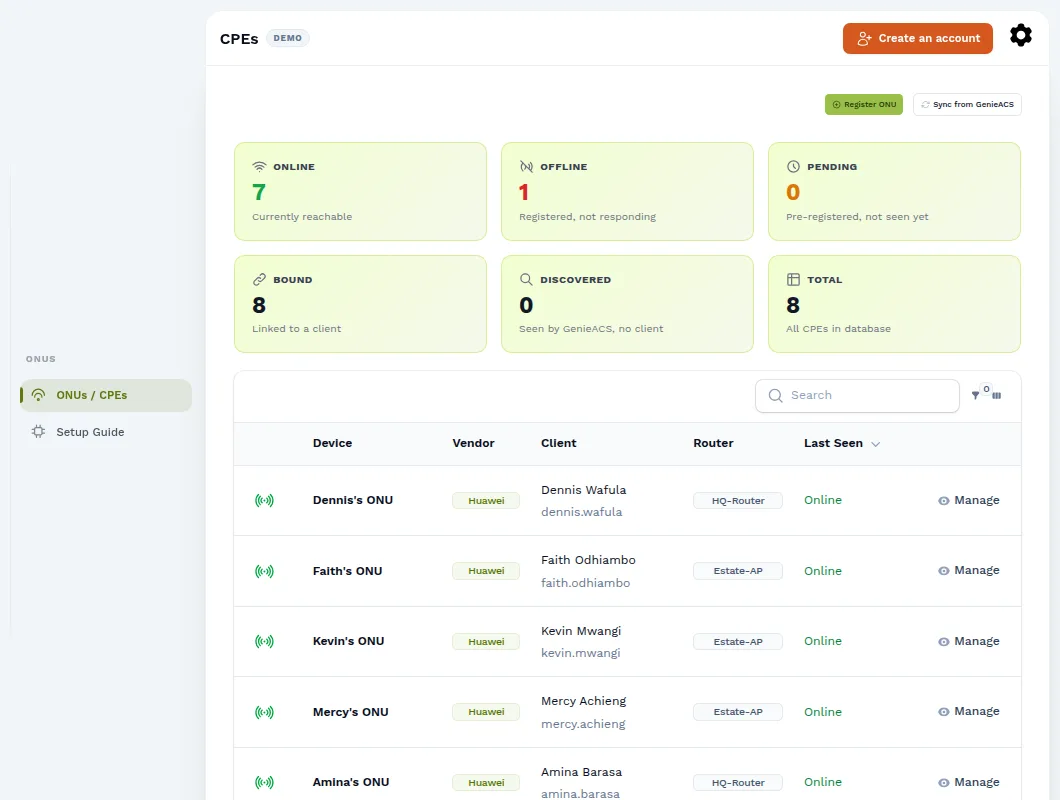
The CPE list shows how many devices are online, offline, pending (pre-registered, not seen yet), bound to a client, or discovered without a client.
Monitoring
PPPoE Clusters
Under Telemetry → PPPoE Clusters, group PPPoE customers by area, building or distribution point. Each cluster shows how many of its customers are online and offline. If every customer in a cluster goes offline for 5 minutes in a row, the cluster is marked down and your team gets an alert. That usually means a cut cable, a failed switch or a power outage in that area, not a single customer's problem. You get another alert when it comes back.
Create the cluster with a name and description, then add its customers.
Hotspot Sites
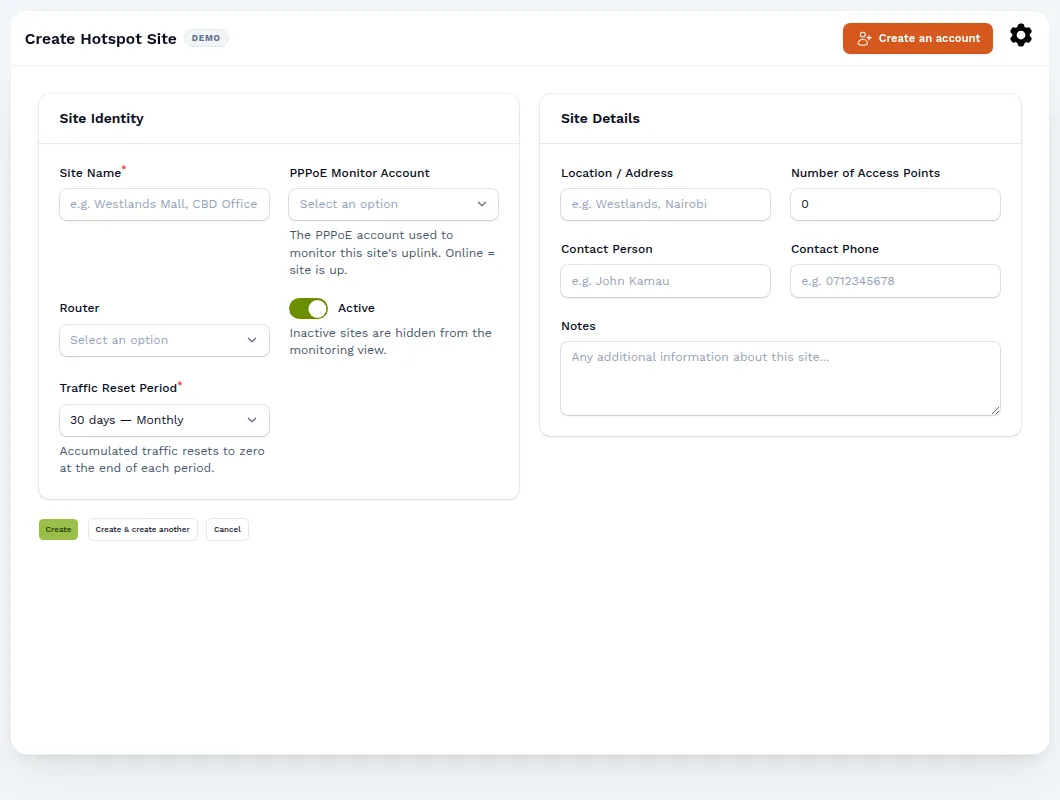
If you run hotspots at remote sites (estates, shops, malls), add each one under Telemetry → Hotspot Sites:
- Site name, location, contact person and phone, so your technicians know where to go and who to call.
- PPPoE Monitor Account: the PPPoE account that feeds the site's uplink. The site is online while that account is connected. If it stays offline for 15 minutes in a row, you get an alert. Short flaps are ignored, so you don't get an SMS every time the link blips.
- Router and number of access points.
- Link ONU: link the site's ONU (managed over TR-069) to count the site's upload and download traffic. Totals reset at the end of each Traffic Reset Period, for example every 30 days.
Operator alerts
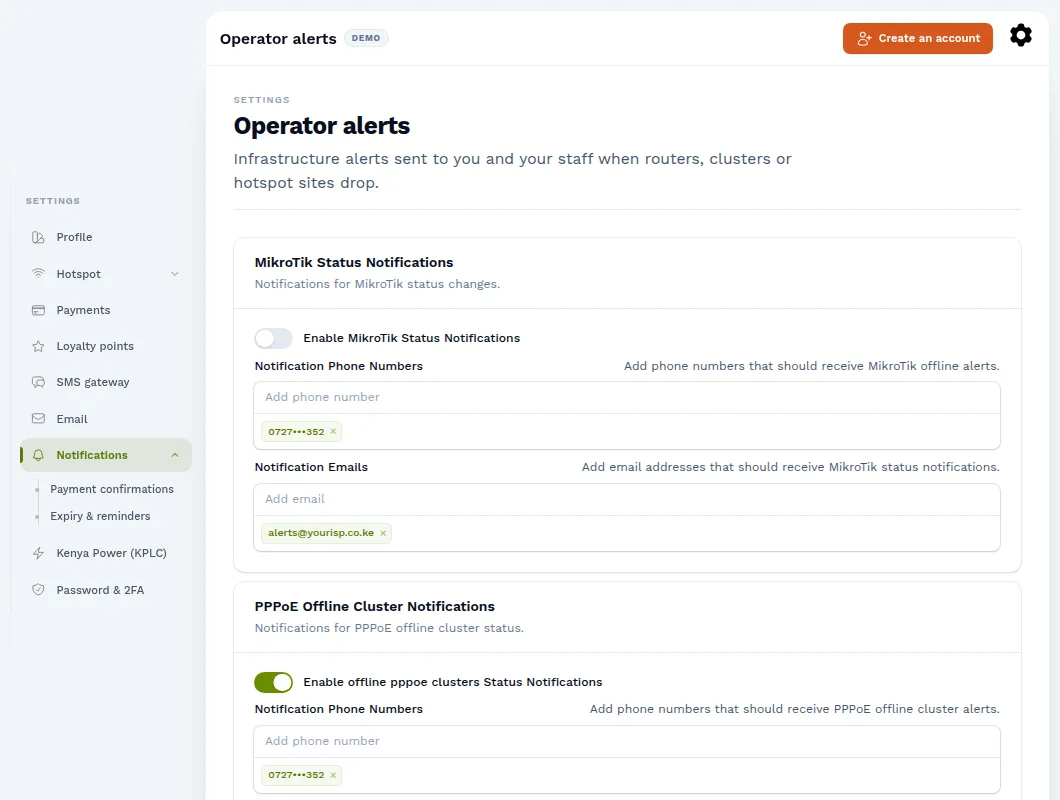
Choose who gets told about problems under Settings → Notifications. Each kind of alert has its own switch and its own list of phone numbers (and email addresses for routers):
- MikroTik status: a router goes offline or comes back.
- PPPoE clusters: a whole cluster goes offline or recovers.
- Hotspot sites: a site's uplink is down for 15 minutes, or recovers.
- Support tickets: a customer opens or replies to a ticket.
Customers & money
Client profiles
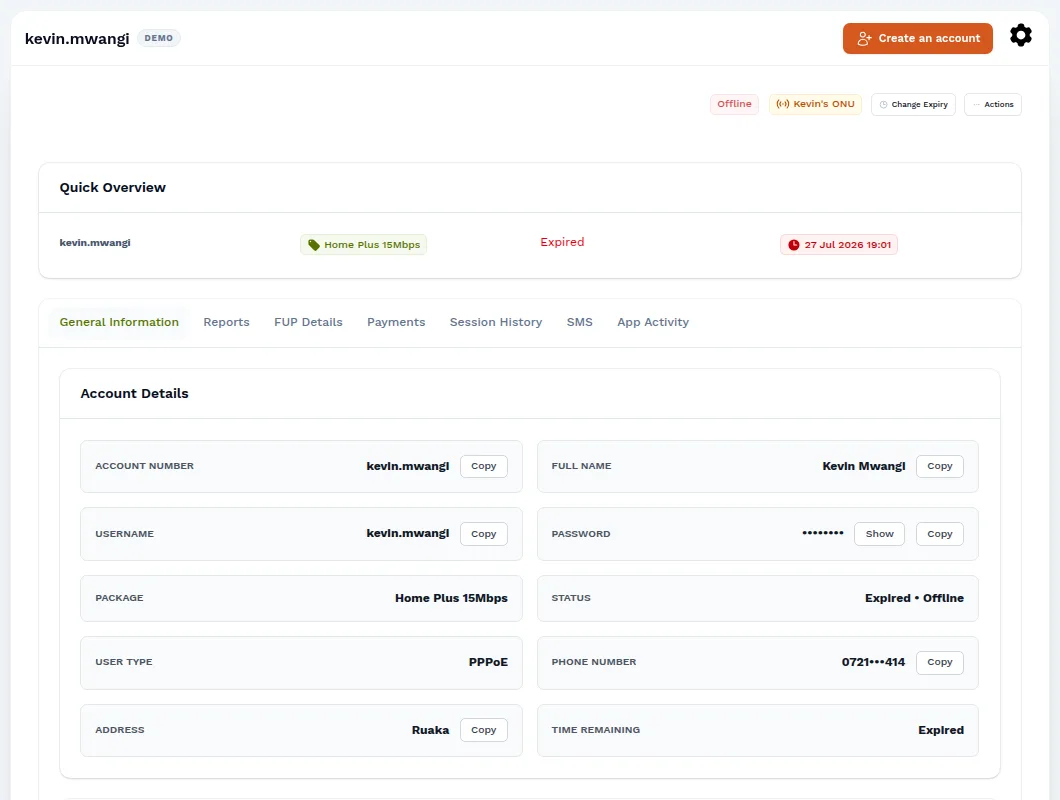
Clients lists every customer, with tabs for PPPoE, Hotspot, Static IP, Online, Offline, FUP and the Loyalty log, plus live counts of who is online. Open a client to see everything about them in one place:
- General Information: account details, login, package, expiry, device and MAC addresses.
- Reports: usage statistics and a live bandwidth chart showing their upload and download as it happens. It's ideal when someone calls to say "the internet is slow".
- FUP Details, Payments, Session History, SMS sent to them, and App Activity.
The Actions menu lets you Change Expiry (with quick buttons for +1 hour, +12 hours, +1 day, +7 days or +1 month), Initiate Payment (sends an M-Pesa prompt to their phone), Send Credentials or Send Voucher by SMS, Remove FUP, and redeem loyalty points. If they have a TR-069 ONU, you can also open its web page from here.
Payments
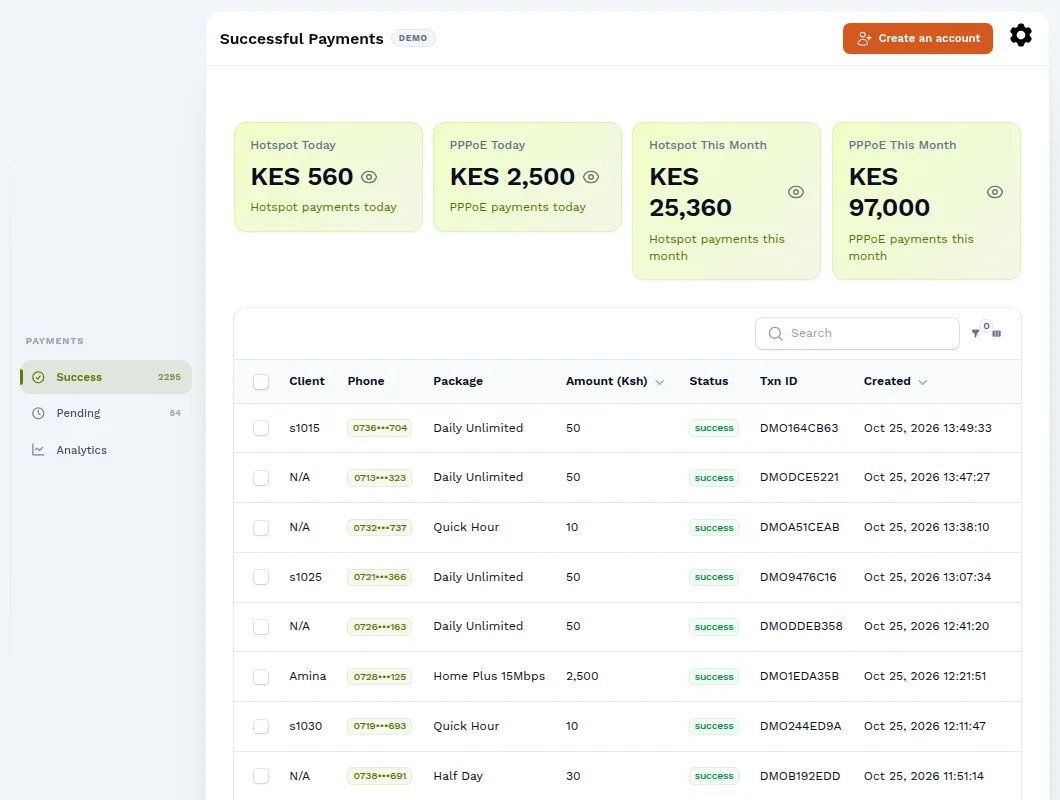
Payments shows hotspot and PPPoE takings for today and this month, and lists every successful payment with the customer, package, amount and M-Pesa receipt. Pending lists M-Pesa prompts the customer hasn't completed yet, and Analytics charts the trends. Each M-Pesa receipt can only be applied once, so a payment can never activate a customer twice.
Expenses & Finance Report
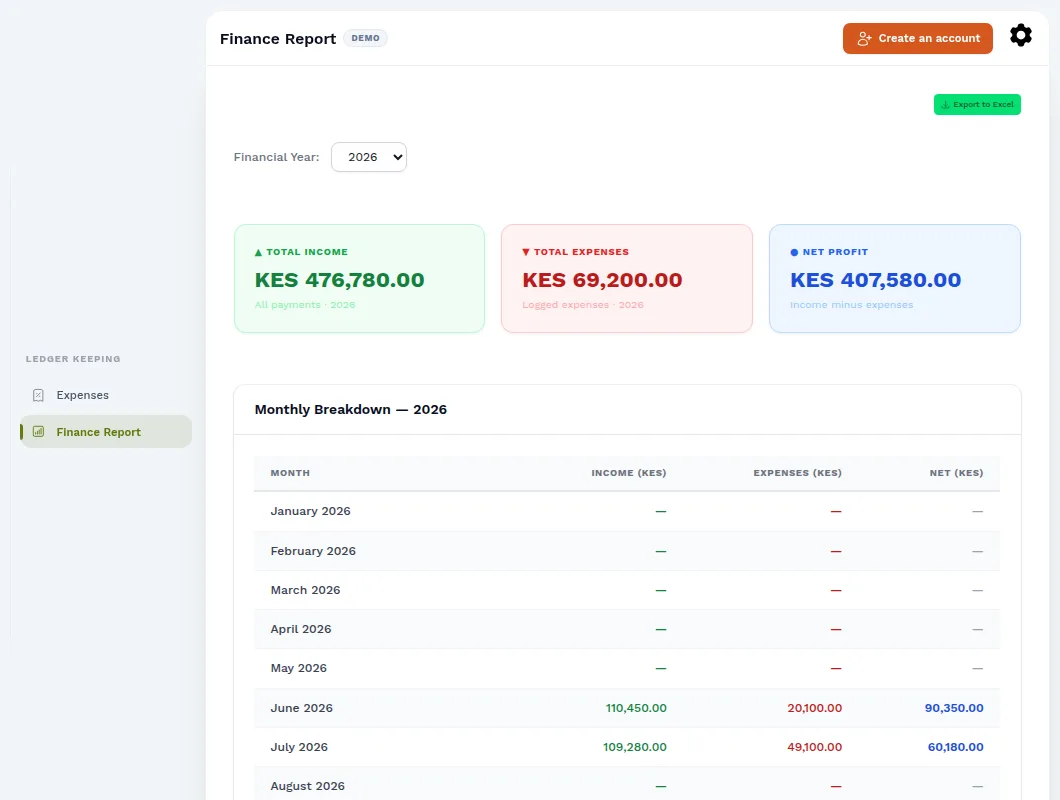
Under Ledger Keeping → Expenses, record what you spend (bandwidth, rent, salaries, equipment) by category, with a photo or PDF of the receipt. Finance Report then sets your income against your expenses for each month of the financial year, so you can see your real profit and where the money goes.
KPLC electricity tokens
Power at your sites is a real running cost. The KPLC page tracks it for you, with no receipts to collect and nothing to type in.
- On the Meters tab, add each prepaid meter: a name (for example the site it powers), the meter serial number, and optionally its location and a contact. You don't need a KPLC login.
- Every day at 07:00, EnziMPya fetches the new token purchases for every active meter from Kenya Power. Click Sync Now to fetch them straight away.
- The Tokens tab lists every purchase with its date, meter, token number, units (kWh), amount and how it was paid. Cards at the top add up the total spend and units, and you can filter by meter to see what each site costs to run.
To turn the daily sync off, use Settings → Kenya Power (KPLC). To leave one meter out without deleting it, untick Active on that meter.
Electricity spend is shown on the KPLC page and isn't added to the Finance Report automatically. If you want it there, record it under Expenses.
SMS, email & push
- SMS: send a message to one customer or to many phone numbers at once, either written yourself or from a template. Connect your SMS provider under Settings → SMS gateway.
- Emails and Email Templates: design HTML emails with placeholders such as
{{ $first_name }},{{ $package_name }},{{ $expiry_at }}and{{ $paybill }}, filled in for each customer. Set up sending under Settings → Email. - Push Notifications: send a message to customers who use the mobile app.
Payment confirmations and expiry reminders are sent automatically. Set them up under Settings → Payment confirmations and Settings → Expiry & reminders. You can also send a welcome SMS when you create a client.
Tickets, leads & tasks
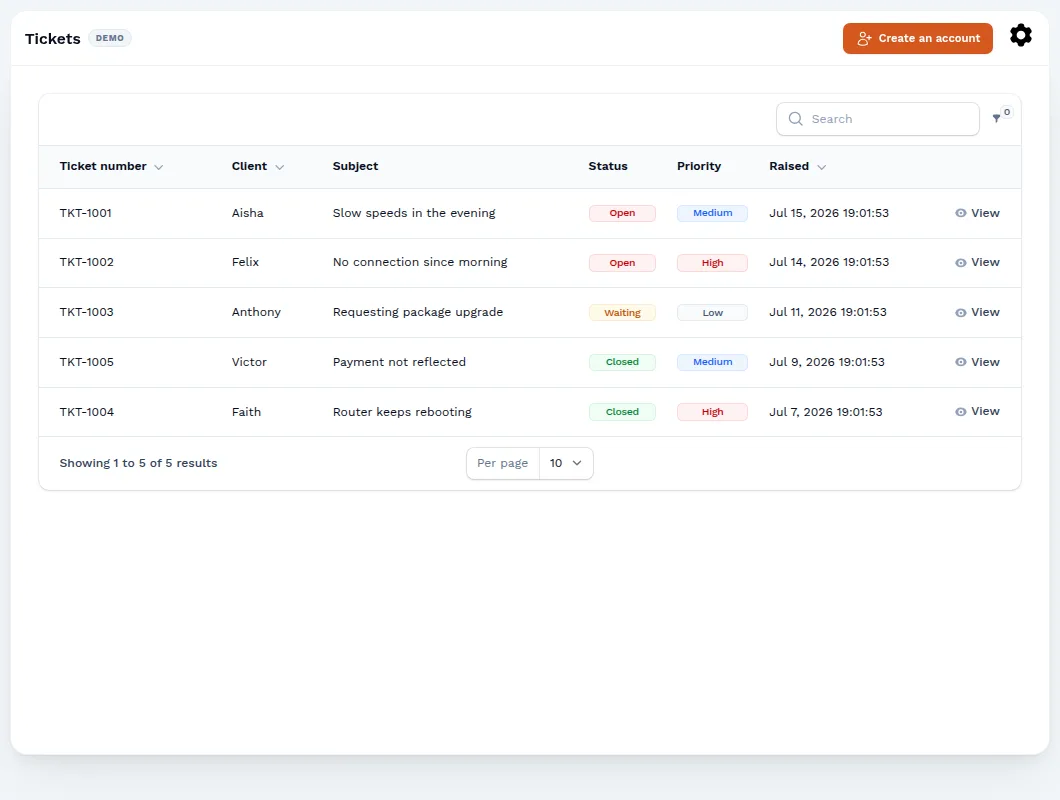
- Tickets: support requests from the mobile app, with the whole conversation in one place. Reply from the dashboard, then set the priority and status (Open, Waiting, Closed).
- Leads: people interested in a connection, with their contact details and a probability score (cold 0–30%, warm 31–70%, hot 71–100%), so your sales team knows who to call first.
- Tasks: installation and maintenance jobs for your technicians, with the connection type, the infrastructure involved, the contact person and who is responsible. Technicians post updates, and you close or reopen the task. Tasks Overview charts open, closed and overdue work.
Free trial & loyalty points
Both are off until you switch them on:
- Free trial (Settings → Free trial): gives new hotspot customers a short, speed-limited trial before they buy. You set the trial length in minutes, whether a device can try again, how often, and a lifetime limit per device.
- Loyalty points (Settings → Loyalty points): customers earn points on hotspot purchases and spend them on a free package from the captive portal. You set how much spending earns a point, what a point is worth and the minimum needed to redeem. The Loyalty Log tab on Clients shows every point earned and spent.
Your account
Staff, security & logs
The gear menu at the top right of the dashboard holds account-wide pages:
- System Users: add your staff. Administrators can do everything. The Technical support role is for technicians who manage the network.
- System Logs: an audit trail of important actions, such as who rebooted an ONU or changed a setting.
- Documents: store company documents in one place.
- Plan & billing: your EnziMPya subscription, the amount due and your invoice history.
Protect every staff account with two-factor sign-in under Settings → Password & 2FA. It uses a code from an authenticator app on your phone.
Troubleshooting
The router stays on "Not responding yet"
- Check that the router has internet. In the terminal, run
/ping 8.8.8.8. - Check that the router's clock is correct and NTP is on. If the clock is far behind, the secure tunnel can't connect.
- Make sure the whole provisioning script was pasted as a single line, then paste it again.
A router is online but customers have problems
- Open the router and run Diagnosis. It finds configuration that has drifted from the baseline and can usually fix it automatically.
A customer paid but isn't connected
- Look for the payment under Payments (or Pending), and check whether the customer's package is active.
- On the captive portal, the customer can enter their M-Pesa code to reconnect. This helps when their phone has changed its Wi-Fi MAC address.
An OLT shows no ONUs
- Go to OLTs & Ports and press Diagnose. The connection panel shows which link is broken: the router's VPN, the forwarding rules or the OLT itself.
- Check that the OLT web login is saved (Edit). The dashboard needs it to read the ONU list.
- If someone has cleaned up the router's firewall, use Re-apply router rules.
A CPE never appears under CPEs
- Check the ACS URL on the device. It must match the Setup Guide exactly.
- The device must be able to reach the ACS URL over its WAN connection. Make sure its internet works first.
- Power-cycle the device so that it calls in again.
Still stuck?
Send us a message on WhatsApp support or email info@enzimpya.com. Include your dashboard address and the router, OLT or customer involved.